TRADEFROMCHART GUIDES

Trading Signals Window

he trading signals window offers you a choice of mechanical algorithmic issued signals developed by Tom Hougaard. It includes the Advanced School Run and School Run for DAX, Brunch break for DAX, First Bar negative for the FTSE, Advanced School Run and School Run for the Dow and School Run for the Nasdaq. And many more to come!
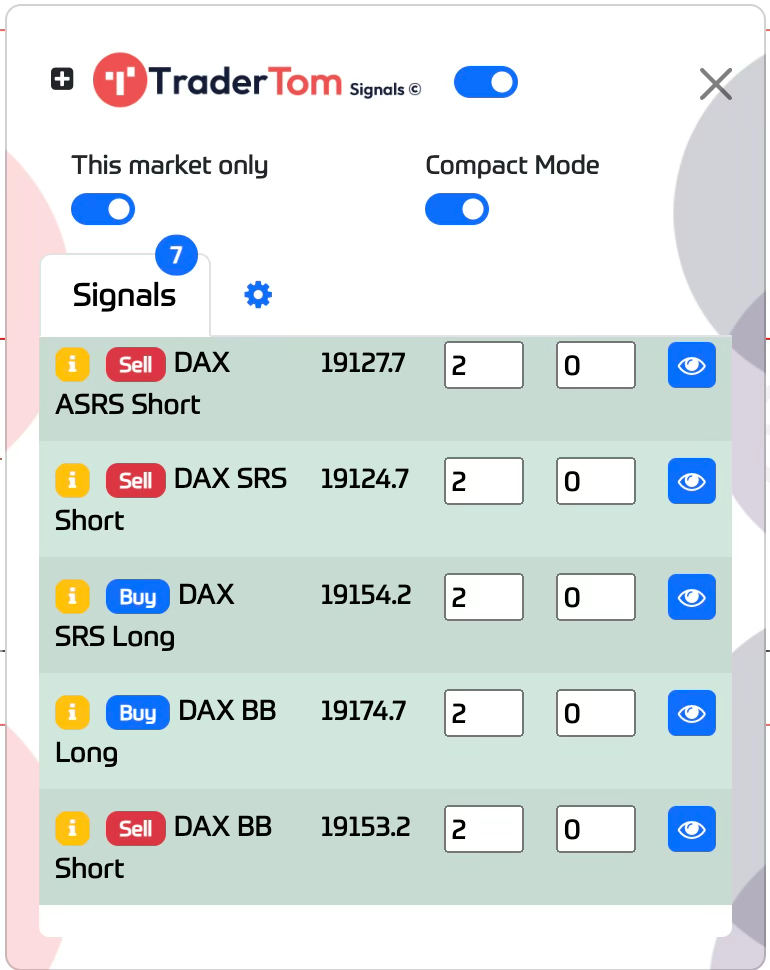

In order to connect to our signals API, please make sure that you have the toggle switched on. Upon first load it will connect automatically.

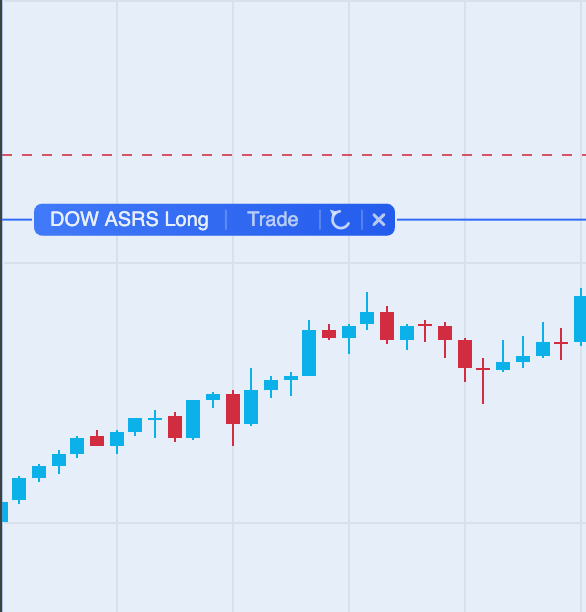
When a signal is issued by our algorithms and are sent to you, they will be visible on the current or previous tab (if you have audio notifications on, they will make a sound). It shows the entry price, stop and limit point options and also allows you to see the signal line on the chart by double clicking the blue eye icon. After the signal line is visible on the chart, clicking the Trade button on the signal line will automatically create an order on the price level indicated. The size will be the default you set for the market the signal is for.

The settings tab has the following options:
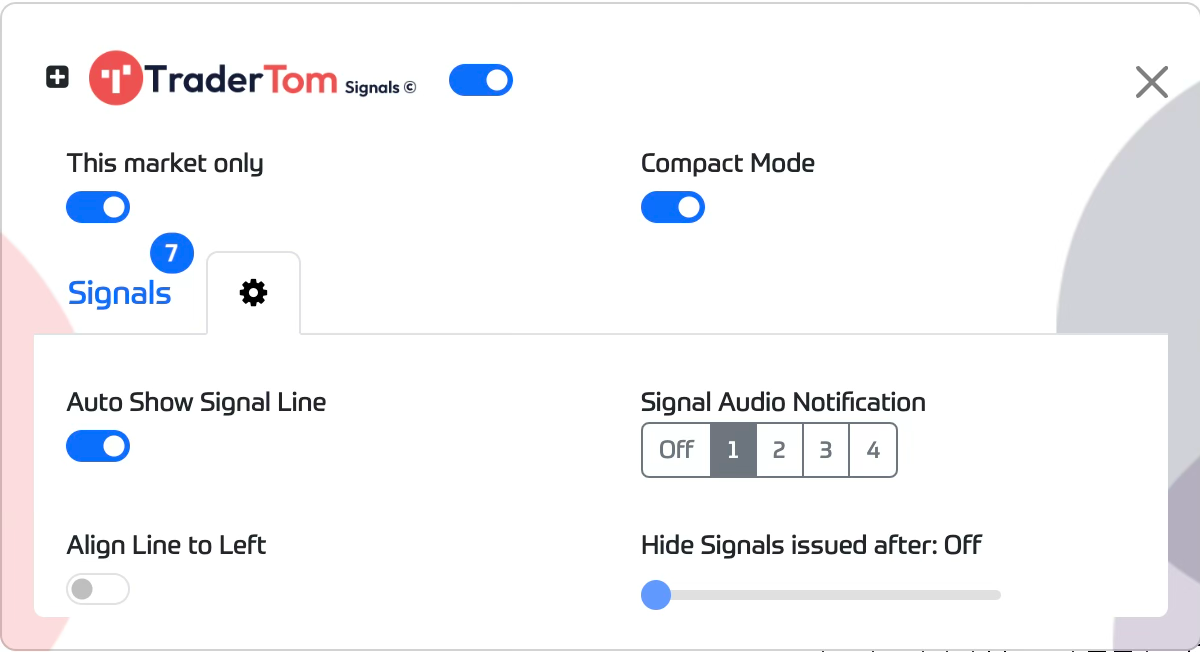
This Market Only - Filter signals only for the current market

Compact Mode - Saves screen space by hiding certain elements from the window

Auto Show Signal Line - When a signal is sent, automatically show the signal line on the chart (if the signal matches the current market open)

Signal Audio Notification - Choose from a choice of audio notifications when a signal is sent
Hide Signals Issued - Hide Signals after x minutes passed (helps to declutter)
Last published 4 November 2026
© 2026 TradeFromChart Made for traders, by traders.
Introduction

This manual will be updated as we bring updates and fixes to the software. If you have any questions, or need to report issues, please conta…

Download

You can download the software from the link below: https://cdn.tradefromchart.com/TFC_Latest_TN.zip…

How to Install

1 - After you have downloaded the .zip file and unzipped in a location on your hard drive, please follow the instructions below: Chrome User…

Toolbar

The toolbar contains all the tools you need to trade: Buy and Sell buttons Size Input with dropdown to select between unit size and % risk b…

Settings Window

The settings window has 3 tabs. The first one allows you to set dark theme, colours to your position and order lines, show countdown timer b…

Positions Window

This window shows your current positions and orders list, showing your position and order attributes The position tab also includes these op…

Price Alerts

Allows you to add price alerts that trigger a sound notification or a Toast notifcation when price level is hit. Client-side alerts are only…

Transactions Window

The transactions window shows your transactions from today, yesterday or last 7 trading days, a Statistics tab showing number of trades, tot…

Market Explorer

The market explorer window shows a list of popular markets and a dropdown choice of your own custom watchlists, allowing you a quick view in…

Economic Calendar

View current economic events that may affect the markets by using the Economic Calendar. Filter by today, tomorrow and weekly events. There …

Trading Signals Window

he trading signals window offers you a choice of mechanical algorithmic issued signals developed by Tom Hougaard. It includes the Advanced S…

Software Announcements Window

Here, you will receive the latest updates and news about the software.…